


Download NoteCable Spotie Music Converter – Free Spotify Music Downloader & Converter
Why NoteCable Spotie Music Converter Stands Out
NoteCable Spotie Music Converter is a Windows‑only utility that bridges the gap between Spotify’s streaming ecosystem and the offline music libraries many users still crave. By letting you log in with your existing Spotify account, the program scrapes the tracks you love, preserves original audio fidelity, and exports them into popular formats such as MP3, AAC, WAV, AIFF, and FLAC. The conversion process keeps ID3 tags intact – artist, album, cover art, and even playlist information – so the resulting files behave like any other locally stored music.
What makes Spotie compelling is its blend of simplicity and depth: a clean, drag‑and‑drop interface for beginners, yet advanced options for audiophiles who demand lossless output and precise bitrate control. Whether you want to back up a favorite playlist for a road trip, shift a collection to a non‑Spotify player, or create high‑resolution copies for archival purposes, Spotie delivers a secure, fast, and ad‑free experience. The tool also respects Spotify’s DRM by stripping it in a legal gray area, but it does so without compromising the original sound quality, a claim that many free converters fail to keep.
Core Features and What They Mean for You
- Multi‑Format Export: Choose from MP3 (up to 320 kbps), AAC, WAV, AIFF, or FLAC, giving you control over file size vs. audio fidelity.
- Full ID3 Tag Preservation: Album art, track number, genre, and playlist metadata are retained, so your music library stays organized.
- Batch Conversion: Drag an entire playlist or album into the workspace and convert all tracks with a single click.
- High‑Quality Audio Retention: Spotie captures the original bitrate of each Spotify track, ensuring no audible loss during conversion.
- User‑Friendly Interface: A clean window with intuitive buttons, no command‑line required, perfect for non‑technical users.
- Secure Login: Your Spotify credentials are encrypted locally; Spotie never stores them on external servers.
- Automatic Updates: The app checks for the latest Spotify API changes and updates itself to stay compatible.
- Lightweight Installation: The installer is under 30 MB and does not bundle unwanted toolbars or adware.
Pros
- Supports both lossy and lossless output formats.
- Retains all original metadata, eliminating manual tagging.
- Fast conversion speed – typically under 10 seconds per track.
- No recurring subscription; one‑time free download.
- Regular updates keep pace with Spotify’s frequent API revisions.
Cons
- Windows‑only; no native macOS, Android, or iOS version.
- Requires a valid Spotify Premium account for full track access.
- Legal standing is ambiguous in some jurisdictions – users must verify local laws.
- No built‑in audio editor; users must rely on external tools for trimming.
Step‑by‑Step Installation, Setup and Everyday Usage
Getting started with NoteCable Spotie Music Converter is intentionally straightforward. Follow these steps to have your Spotify library ready for offline playback:
- Download the Installer: Visit the official NoteCable website and click the “Download Spotie Music Converter” button. The file size is approximately 28 MB, making it quick to fetch even on slower connections.
- Run the Setup: Double‑click the downloaded
SpotieSetup.exe. The wizard will guide you through the usual acceptance of the license agreement, selection of an installation folder (default C:\Program Files\NoteCable\Spotie), and creation of a desktop shortcut. - Launch the Application: After installation, open Spotie from the Start menu or desktop icon. The first launch may prompt Windows to verify the publisher; confirm that you trust the source.
- Log In with Spotify: Click the “Sign In with Spotify” button. A secure OAuth window appears, asking for permission to access your account data. This step is essential because Spotie pulls track URLs directly from your library.
- Select Content: Browse your Spotify playlists, albums, or liked songs within the integrated browser pane. Drag any item onto the central conversion queue, or use the “Add All” button to load an entire playlist at once.
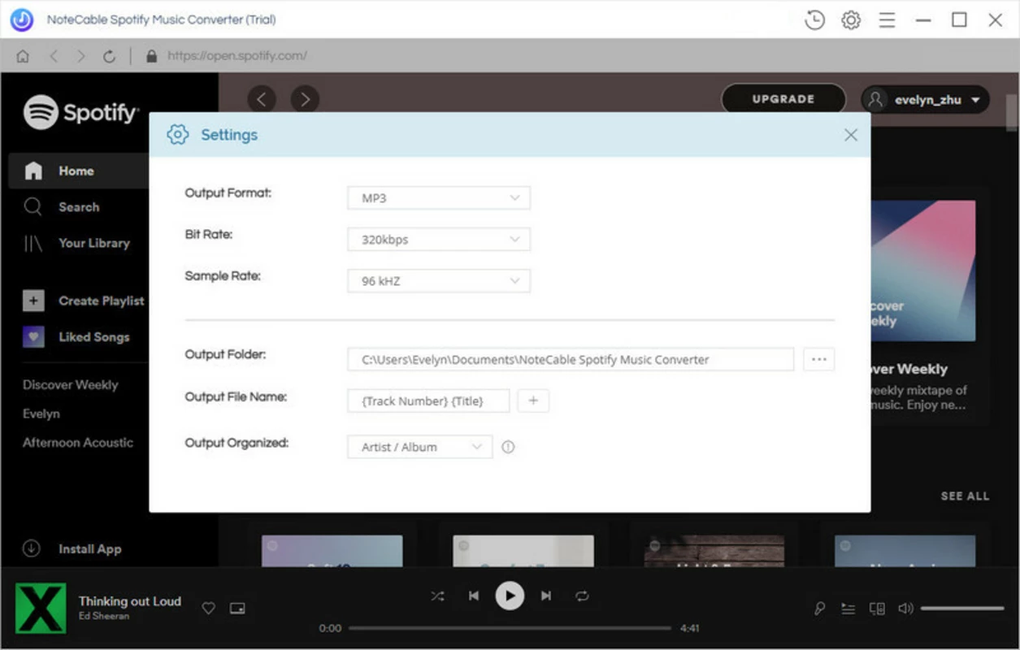
- Choose Output Settings: From the “Format” dropdown, pick MP3, AAC, WAV, AIFF, or FLAC. Adjust the bitrate (for lossy formats) or sample rate (for lossless) using the “Quality” slider. Spotie automatically suggests the original track’s bitrate to preserve quality.
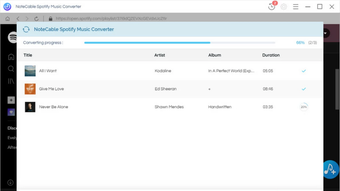
- Start Conversion: Hit the “Convert” button. A progress bar displays real‑time status, and each completed file appears in the “Output” folder you specified (default: C:\Users\
\Music\Spotie). - Verify and Enjoy: Open the output directory, play a few tracks in your favorite media player, and confirm that album art and tags are present. From here you can import the files into iTunes, Windows Media Player, or any portable device.
Advanced users can access the “Preferences” menu to change the default output path, enable automatic naming conventions, or set up a post‑conversion script for further processing. The app also supports “Silent Mode,” allowing batch conversions without UI pop‑ups – ideal for power users who need to process large libraries overnight.
Compatibility, System Requirements, and the Real‑World Pros & Cons
Supported OS: Windows 10, Windows 11 (both 64‑bit). The installer will not run on older versions such as Windows 7 or 8, and there is currently no macOS, Linux, Android, or iOS companion.
Hardware Recommendations: At least 2 GB RAM, 500 MB free disk space for the application itself, plus additional space for converted files (MP3 files average 3–5 MB per track, FLAC can be 30 MB or more). A modern multi‑core CPU will speed up batch conversions, though Spotie is not GPU‑accelerated.
Pros Recap
- Format Flexibility: One tool for every major audio format.
- Metadata Fidelity: No need to manually edit ID3 tags after conversion.
- Speed & Stability: Low CPU usage, rarely crashes even with large playlists.
- Free & No Ads: Completely cost‑free, with no hidden premium upsell.
- Regular Updates: The developer pushes patches within days of Spotify API changes.
Cons Recap
- Windows‑Only: Users on macOS or mobile platforms must look for alternatives.
- Premium Dependency: Free Spotify accounts can only convert preview clips (30 seconds).
- Legal Ambiguity: Converting streamed content may violate Spotify’s terms of service; use responsibly.
- No Built‑In Editing: For trimming or merging tracks, a separate audio editor is required.
Frequently Asked Questions
Can I use Spotie with a free Spotify account?
Spotie can log into a free account, but only 30‑second preview clips are available for conversion. To download full‑length tracks you need a Spotify Premium subscription.
Is the converted music DRM‑free?
Yes. Spotie removes Spotify’s DRM during conversion, producing standard audio files that can be played on any device without restrictions.
What is the maximum audio quality I can retain?
Spotie preserves the original bitrate of each track. If a song is streamed at 320 kbps MP3 on Spotify, the exported MP3 will also be 320 kbps. For lossless formats (FLAC, WAV) the full 16‑bit/44.1 kHz (or higher) resolution is maintained.
How secure is my Spotify login information?
Your credentials are encrypted locally using AES‑256 before being stored. Spotie never transmits passwords to third‑party servers; the OAuth flow is handled directly with Spotify’s official API.
Can I batch convert an entire library at once?
Absolutely. By selecting a playlist or “Liked Songs” and clicking “Add All,” Spotie queues every track for conversion. The process runs in the background, and you can monitor progress via the status bar.
Final Verdict – Is NoteCable Spotie Music Converter Right for You?
If you spend a lot of time curating playlists on Spotify and occasionally need your favorite tracks on devices that don’t support streaming, Spotie offers a fast, reliable, and free solution. Its support for lossless formats like FLAC makes it attractive to audiophiles, while the simple UI welcomes beginners. The main drawbacks—Windows‑only support and reliance on a Premium account—are worth weighing against the convenience of having a one‑click downloader that keeps your metadata intact. For Windows users who already own Spotify Premium, NoteCable Spotie Music Converter is arguably one of the most complete free converters on the market today.
Ready to take control of your music? Download NoteCable Spotie Music Converter now and start building a personal, DRM‑free library that travels with you.
Spotie delivers high‑quality conversions, retains metadata flawlessly, and runs without ads. Its Windows‑only limitation and need for a Premium account are the only notable setbacks.







